
Arming the system sets the security sensors to an alarm state. The Armed Away status sets both contact sensors and motion sensors into an alarm state, while Armed Stay status only sets contact sensors to an alarm state.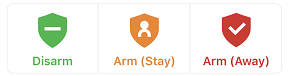
Note: If the system is not arming properly, check if any unbypassed sensors are open. If the system continues to be unable to arm remotely, contact your service provider.
Arming options #
When arming using the Alarm.com app or Alarm.com customer website, some of the following options may be available for you to select. Options vary depending on your system’s configuration.
- Silent Arming – This allows you to arm the system without any noise. By default, the panel makes exit delay beeps when you arm your system.
- No Entry Delay – This allows the system to bypass the entry delay once the system is armed. Entry delay is the time set to allow you to walk from an entry/exit zone to the location of your panel to disarm the panel.
- Bypass Open Zones – This allows the system to bypass open zones while arming the system. This feature can be used to attempt to force the system to arm regardless of zones that may be open. Zones that are bypassed will not trigger an alarm on the system.
To arm the system using the EpicAlarm.com app: #
- Log in to the EpicAlarm.com app.
- In the Security System card, tap
 .
. - Select the desired arming options, if applicable.
- Tap either Arm (Stay) to arm the system to stay mode, or Arm (Away) to arm the system to away mode.
To arm the system using the EpicAlarm.com customer website: #
- Log in to the EpicAlarm.com customer website.
- Click in the Security card.
- Select the desired arming options, if applicable.
- Click either Stay to arm the system to stay mode, or Away to arm the system to away mode.
To arm the system using Scenes: #
Scenes allow you to configure a button on the Alarm.com app and Alarm.com customer website that triggers multiple actions across multiple devices at once. For more information about Scenes, see How do Scenes work?.
Confirm that you want to send the command to run that Scene.
Log in to the Alarm.com app or Alarm.com customer website.
In Scenes, select the Scene you want to run that includes the arming command.
For more information about creating or editing Scenes, see Create/edit a Scene.
The system can be remotely disarmed using the Alarm.com app or Alarm.com customer website. Disarming the system puts it into a non-alarm state when the location is occupied.
To disarm the system using the Alarm.com app: #
- Log in to the EpicAlarm.com app.
- In the Security System card, tap the shield icon that indicates the current arming state.
- Tap Disarm.
To disarm the system using the Alarm.com customer website: #
- Log in to the EpicAlarm.com customer website.
- In the Security card, click the shield icon that indicates the current arming state.
- Click Disarm.
To disarm the system using Scenes: #
Scenes allow users to configure a button on the Alarm.com app and Alarm.com customer website that triggers multiple actions across multiple devices at once. For more information about Scenes, see How do Scenes work?.
- Log in to the Alarm.com app or Alarm.com customer website.
- In Scenes, select the Scene you want to run that includes the disarm command.
- For more information about creating or editing Scenes, see Create/edit a Scene.
- Confirm that you want to run that Scene.


